
CASQUE SANS FIL BLUETOOTH #F8V9017EA - Casque sans fil BELKIN - Notice d'utilisation et mode d'emploi gratuit
Retrouvez gratuitement la notice de l'appareil CASQUE SANS FIL BLUETOOTH #F8V9017EA BELKIN au format PDF.


| Type de produit | Casque sans fil Bluetooth mains libres |
| Marque | BELKIN |
| Modèle | F8V9017EA |
| Alimentation | Batterie rechargeable, temps de charge : 5 heures |
| Appairage Bluetooth | Mode appairage avec PIN 1234 |
| Contrôle du volume | Boutons Volume + et Volume - |
| Bouton multifonction | Marche/arrêt, appairage, réponse/fin d'appel |
| Microphone | Microphone intégré avec fonction sourdine |
| Indicateur LED | LED bicolore (rouge/vert) pour l'état et la charge |
| Port de charge | Connecteur de charge dédié |
| Port à oreille | Amovible et réversible pour oreille gauche ou droite |
| Tonalités sonores | Plusieurs tonalités pour allumage, appairage, erreur, etc. |
| Entretien et nettoyage | Nettoyer avec un chiffon doux et sec. Éviter les liquides. |
| Sécurité | Ne pas utiliser au volant si interdit. Respecter la réglementation. |
| Informations générales | Code PIN par défaut : 1234. Marquage CE. |
FOIRE AUX QUESTIONS - CASQUE SANS FIL BLUETOOTH #F8V9017EA BELKIN
Questions des utilisateurs sur CASQUE SANS FIL BLUETOOTH #F8V9017EA BELKIN
0 question sur cet appareil. Repondez a celles que vous connaissez ou posez la votre.
Poser une nouvelle question sur cet appareil
Téléchargez la notice de votre Casque sans fil au format PDF gratuitement ! Retrouvez votre notice CASQUE SANS FIL BLUETOOTH #F8V9017EA - BELKIN et reprennez votre appareil électronique en main. Sur cette page sont publiés tous les documents nécessaires à l'utilisation de votre appareil CASQUE SANS FIL BLUETOOTH #F8V9017EA de la marque BELKIN.
MODE D'EMPLOI CASQUE SANS FIL BLUETOOTH #F8V9017EA BELKIN
I. Important Information for Safe Use
En
Driving
Check the regulations affecting the use of hands-free devices where you drive. Only use the Headset when and where it is safe to do so.

Fr
Driving
Check the regulations affecting the use of hands-free devices where you drive. Only use the Headset when and where it is safe to do so.
De
Driving
Check the regulations affecting the use of hands-free devices where you drive. Only use the Headset when and where it is safe to do so.
NL
Driving
Check the regulations affecting the use of hands-free devices where you drive. Only use the Headset when and where it is safe to do so.
It
Driving
Check the regulations affecting the use of hands-free devices where you drive. Only use the Headset when and where it is safe to do so.
Es
Driving
Check the regulations affecting the use of hands-free devices where you drive. Only use the Headset when and where it is safe to do so.
II. Controls and Functions
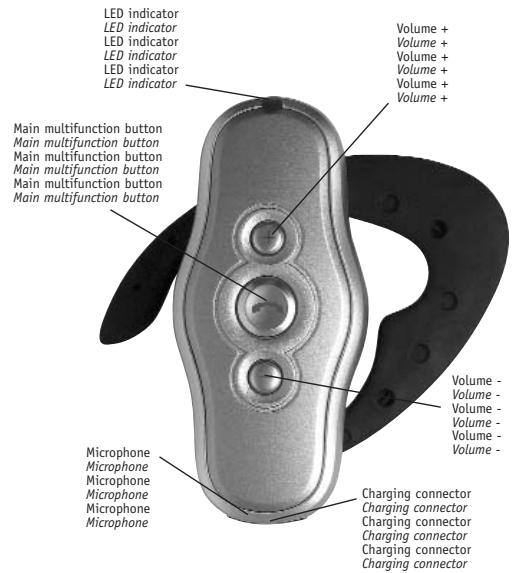
Shown configured for wearing on the right ear / Shown configured for wearing on the right ear / Shown configured for wearing on the right ear / Shown configured for wearing on the right ear / Shown configured for wearing on the right ear / Shown configured for wearing on the right ear
En
Keypad
- One push button to switch the Headset on/off, to select PAIRING mode, or to initiate or answer a call
- Two switches to control receive-volume
Fr
Keypad
- One push button to switch the Headset on/off, to select PAIRING mode, or to initiate or answer a call
- Two switches to control receive-volume
De
Keypad
- One push button to switch the Headset on/off, to select PAIRING mode, or to initiate or answer a call
- Two switches to control receive-volume
NL
Keypad
- One push button to switch the Headset on/off, to select PAIRING mode, or to initiate or answer a call
- Two switches to control receive-volume
Es
Keypad
- One push button to switch the Headset on/off, to select PAIRING mode, or to initiate or answer a call
- Two switches to control receive-volume
It
Keypad
- One push button to switch the Headset on/off, to select PAIRING mode, or to initiate or answer a call
- Two switches to control receive-volume
II. Controls and Functions / Sounds
En
In order to make operation easier, the Headset generates several sounds:
Switch-on tone / Switch-off tone / Pairing tone / Reset tone / Confirmation tone / Error tone / Alert tone / Mute tone / Ring tone
Fr
In order to make operation easier, the Headset generates several sounds:
Switch-on tone / Switch-off tone / Pairing tone / Reset tone / Confirmation tone / Error tone / Alert tone / Mute tone / Ring tone
De
In order to make operation easier, the Headset generates several sounds:
Switch-on tone / Switch-off tone / Pairing tone / Reset tone / Confirmation tone / Error tone / Alert tone / Mute tone / Ring tone
NL
In order to make operation easier, the Headset generates several sounds:
Switch-on tone / Switch-off tone / Pairing tone / Reset tone / Confirmation tone / Error tone / Alert tone / Mute tone / Ring tone
Es
In order to make operation easier, the Headset generates several sounds:
Switch-on tone / Switch-off tone / Pairing tone / Reset tone / Confirmation tone / Error tone / Alert tone / Mute tone / Ring tone
It
In order to make operation easier, the Headset generates several sounds:
Switch-on tone / Switch-off tone / Pairing tone / Reset tone / Confirmation tone / Error tone / Alert tone / Mute tone / Ring tone
III. Operation
En
Wearing the Headset
- The Headset can be worn on either ear, by changing the orientation of the ear hook.
• To remove the ear hook, carefully lever it from the back of the Headset by hand. - The ear hook can be replaced either way up. Note the indentation in the center to properly orient the ear hook on the Headset.
- With the user controls facing the user and the LED at the top, the closed loop of the ear hook should "point" right for operation on the right ear, and left for the left ear.
• To place on the ear, hold the Headset in the hand and push the open end of the hook slightly away from the Headset body.
Fr
Wearing the Headset
- The Headset can be worn on either ear, by changing the orientation of the ear hook.
• To remove the ear hook, carefully lever it from the back of the Headset by hand. - The ear hook can be replaced either way up. Note the indentation in the center to properly orient the ear hook on the Headset.
- With the user controls facing the user and the LED at the top, the closed loop of the ear hook should "point" right for operation on the right ear, and left for the left ear.
• To place on the ear, hold the Headset in the hand and push the open end of the hook slightly away from the Headset body.
III. Operation (continued)
De
Wearing the Headset
- The Headset can be worn on either ear, by changing the orientation of the ear hook.
• To remove the ear hook, carefully lever it from the back of the Headset by hand. - The ear hook can be replaced either way up. Note the indentation in the center to properly orient the ear hook on the Headset.
- With the user controls facing the user and the LED at the top, the closed loop of the ear hook should "point" right for operation on the right ear, and left for the left ear.
• To place on the ear, hold the Headset in the hand and push the open end of the hook slightly away from the Headset body.
NL
Wearing the Headset
- The Headset can be worn on either ear, by changing the orientation of the ear hook.
• To remove the ear hook, carefully lever it from the back of the Headset by hand. - The ear hook can be replaced either way up. Note the indentation in the center to properly orient the ear hook on the Headset.
- With the user controls facing the user and the LED at the top, the closed loop of the ear hook should "point" right for operation on the right ear, and left for the left ear.
• To place on the ear, hold the Headset in the hand and push the open end of the hook slightly away from the Headset body.
Es
Wearing the Headset
- The Headset can be worn on either ear, by changing the orientation of the ear hook.
• To remove the ear hook, carefully lever it from the back of the Headset by hand. - The ear hook can be replaced either way up. Note the indentation in the center to properly orient the ear hook on the Headset.
- With the user controls facing the user and the LED at the top, the closed loop of the ear hook should "point" right for operation on the right ear, and left for the left ear.
• To place on the ear, hold the Headset in the hand and push the open end of the hook slightly away from the Headset body.
It
Wearing the Headset
- The Headset can be worn on either ear, by changing the orientation of the ear hook.
• To remove the ear hook, carefully lever it from the back of the Headset by hand. - The ear hook can be replaced either way up. Note the indentation in the center to properly orient the ear hook on the Headset.
- With the user controls facing the user and the LED at the top, the closed loop of the ear hook should "point" right for operation on the right ear, and left for the left ear.
• To place on the ear, hold the Headset in the hand and push the open end of the hook slightly away from the Headset body.
IV. Preparing the Headset for Use—Pairing
En
PIN Code: The PIN code for the Headset is preset to 1234. It will be needed for pairing.
Before the Headset can communicate, it must be paired to the companion device it will be used with, such as a mobile phone. This is to ensure the Headset only communicates with the device chosen by the user and not any other Bluetooth devices in range.
Pairing information is stored by the Headset and can be changed at any time.
The exact process to pair the Headset will also depend on the device it is paired with. The user manual for that device will give instructions on how to do this. In all cases, the Headset will need to be put into PAIRING mode, which is described here:
- If the Headset is on, switch it off.
- Press and hold the main button.
- When the short tone is heard, keep the button pressed until the pairing melody is generated.
- The LED will alternately flash red/green.
- Follow instructions for the companion device to pair to the Headset.
- When prompted on the companion device, enter the PIN code for the Headset.
- When paired, the Headset will give a short confirmation tone and switch to STANDBY, ready for operation.
Fr
PIN Code: The PIN code for the Headset is preset to 1234. It will be needed for pairing.
Before the Headset can communicate, it must be paired to the companion device it will be used with, such as a mobile phone. This is to ensure the Headset only communicates with the device chosen by the user and not any other Bluetooth devices in range.
Pairing information is stored by the Headset and can be changed at any time.
The exact process to pair the Headset will also depend on the device it is paired with. The user manual for that device will give instructions on how to do this. In all cases, the Headset will need to be put into PAIRING mode, which is described here:
- If the Headset is on, switch it off.
- Press and hold the main button.
- When the short tone is heard, keep the button pressed until the pairing melody is generated.
- The LED will alternately flash red/green.
- Follow instructions for the companion device to pair to the Headset.
- When prompted on the companion device, enter the PIN code for the Headset.
- When paired, the Headset will give a short confirmation tone and switch to STANDBY, ready for operation.
De
PIN Code: The PIN code for the Headset is preset to 1234. It will be needed for pairing.
Before the Headset can communicate, it must be paired to the companion device it will be used with, such as a mobile phone. This is to ensure the Headset only communicates with the device chosen by the user and not any other Bluetooth devices in range.
Pairing information is stored by the Headset and can be changed at any time.
The exact process to pair the Headset will also depend on the device it is paired with. The user manual for that device will give instructions on how to do this. In all cases, the Headset will need to be put into PAIRING mode, which is described here:
-
If the Headset is on, switch it off.
-
Press and hold the main button.
- When the short tone is heard, keep the button pressed until the pairing melody is generated.
- The LED will alternately flash red/green.
- Follow instructions for the companion device to pair to the Headset.
- When prompted on the companion device, enter the PIN code for the Headset.
- When paired, the Headset will give a short confirmation tone and switch to STANDBY, ready for operation.
NL
PIN Code: The PIN code for the Headset is preset to 1234. It will be needed for pairing.
Before the Headset can communicate, it must be paired to the companion device it will be used with, such as a mobile phone. This is to ensure the Headset only communicates with the device chosen by the user and not any other Bluetooth devices in range.
Pairing information is stored by the Headset and can be changed at any time.
The exact process to pair the Headset will also depend on the device it is paired with. The user manual for that device will give instructions on how to do this. In all cases, the Headset will need to be put into PAIRING mode, which is described here:
1. If the Headset is on, switch it off.
2. Press and hold the main button.
3. When the short tone is heard, keep the button pressed until the pairing melody is generated.
4. The LED will alternately flash red/green.
5. Follow instructions for the companion device to pair to the Headset.
6. When prompted on the companion device, enter the PIN code for the Headset.
7. When paired, the Headset will give a short confirmation tone and switch to STANDBY, ready for operation.
Bluetooth™ Hands-Free Headset
Experience the freedom of wireless communication
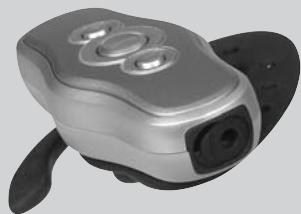
natural_image
Close-up of a silver and black handheld device with three circular buttons (no visible text or symbols)Bluetooth™
For use with mobile phones enabled with Bluetooth™ technology.
User Manual
F8V9017
Belkin Corporation
501 West Walnut Street Compton • CA • 90220 • USA Tel: 310.898.1100 Fax: 310.898.1111
Belkin Components, Ltd.
Express Business Park Shipton Way • Rushden • NN10 6GL United Kingdom Tel: +44 (0) 1933 35 2000 Fax: +44 (0) 1933 31 2000
Belkin Components B.V.
Starparc Building Boeing Avenue 333 1119 PH Schiphol-Rijk The Netherlands Tel: +31 (0) 20 654 7300 Fax: +31 (0) 20 654 7349
Belkin GmbH
Hanebergstrasse 2 80637 München • Germany Tel: +49 (0) 89 143 405-0 Fax: +49 (0) 89 143 405-100
Tech Support
US: 310.898.1100 ext. 2263 800.223.5546 ext. 2263 Europe: 00 800 223 55 460 Australia: 1800 666 040
© 2003 Belkin Corporation. All rights reserved. All trade names are registered trademarks of respective manufacturers listed.
P74195ea
IV. Preparing the Headset for Use—Pairing (continued)
Es
PIN Code: The PIN code for the Headset is preset to 1234. It will be needed for pairing.
Before the Headset can communicate, it must be paired to the companion device it will be used with, such as a mobile phone. This is to ensure the Headset only communicates with the device chosen by the user and not any other Bluetooth devices in range.
Pairing information is stored by the Headset and can be changed at any time.
The exact process to pair the Headset will also depend on the device it is paired with. The user manual for that device will give instructions on how to do this. In all cases, the Headset will need to be put into PAIRING mode, which is described here:
-
If the Headset is on, switch it off.
-
Press and hold the main button.
-
When the short tone is heard, keep the button pressed until the pairing melody is generated.
-
The LED will alternately flash red/green.
-
Follow instructions for the companion device to pair to the Headset.
-
When prompted on the companion device, enter the PIN code for the Headset.
-
When paired, the Headset will give a short confirmation tone and switch to STANDBY, ready for operation.
It
PIN Code: The PIN code for the Headset is preset to 1234. It will be needed for pairing.
Before the Headset can communicate, it must be paired to the companion device it will be used with, such as a mobile phone. This is to ensure the Headset only communicates with the device chosen by the user and not any other Bluetooth devices in range.
Pairing information is stored by the Headset and can be changed at any time.
The exact process to pair the Headset will also depend on the device it is paired with. The user manual for that device will give instructions on how to do this. In all cases, the Headset will need to be put into PAIRING mode, which is described here:
-
If the Headset is on, switch it off.
-
Press and hold the main button
-
When the short tone is heard, keep the button pressed until the pairing melody is generated.
-
The LED will alternately flash red/green.
-
Follow instructions for the companion device to pair to the Headset.
-
When prompted on the companion device, enter the PIN code for the Headset.
-
When paired, the Headset will give a short confirmation tone and switch to STANDBY, ready for operation.
V. Troubleshooting
En
- If the Headset stops operating, first ensure it is charged by charging it for five hours.
- If the Headset remains non-functional, it may be reset by the following method: Press and hold the volume-down button, and at the same time, plug in the charger as though to place the unit on charge.
- The Headset will reset itself and be left in OFF mode.
Fr
- If the Headset stops operating, first ensure it is charged by charging it for five hours.
- If the Headset remains non-functional, it may be reset by the following method: Press and hold the volume-down button, and at the same time, plug in the charger as though to place the unit on charge.
• The Headset will reset itself and be left in OFF mode.
De
- If the Headset stops operating, first ensure it is charged by charging it for five hours.
- If the Headset remains non-functional, it may be reset by the following method: Press and hold the volume-down button, and at the same time, plug in the charger as though to place the unit on charge.
• The Headset will reset itself and be left in OFF mode.
NL
- If the Headset stops operating, first ensure it is charged by charging it for five hours.
- If the Headset remains non-functional, it may be reset by the following method: Press and hold the volume-down button, and at the same time, plug in the charger as though to place the unit on charge.
• The Headset will reset itself and be left in OFF mode.
Es
- If the Headset stops operating, first ensure it is charged by charging it for five hours.
- If the Headset remains non-functional, it may be reset by the following method: Press and hold the volume-down button, and at the same time, plug in the charger as though to place the unit on charge.
• The Headset will reset itself and be left in OFF mode.
It
- If the Headset stops operating, first ensure it is charged by charging it for five hours.
- If the Headset remains non-functional, it may be reset by the following method: Press and hold the volume-down button, and at the same time, plug in the charger as though to place the unit on charge.
• The Headset will reset itself and be left in OFF mode.

LED Indicator
A red/green LED is used to indicate various functions.
LED Color
Effect in Current Mode
| Steady ON | Alternate Blinking | Slow Flashing | Fast Flashing | ...with 2 blinks | Steady OFF | |
| Red | Switched OFF and on charge, battery low | STAND BY-mode and battery low | TALK or INCOMING CALL and battery low | TALK and muted and battery low | OFF-mode | |
| Green | Switched OFF and on charge, battery high | STAND BY-mode and battery lhigh | TALK or INCOMING CALL and battery high | TALK and muted and battery high | ||
| Red and Green | PAIRING mode |
Note: When on charge with the Headset not switched OFF, the LED flashing sequence is not changed, but the LED color will change from red to green as the battery reaches full charge.

LED Indicator
A red/green LED is used to indicate various functions.
LED Color
Effect in Current Mode
| Steady ON | Alternate Blinking | Slow Flashing | Fast Flashing | ...with 2 blinks | Steady OFF | |
| Red | Switched OFF and on charge, battery low | STAND BY-mode and battery low | TALK or INCOMING CALL and battery low | TALK and muted and battery low | OFF-mode | |
| Green | Switched OFF and on charge, battery high | STAND BY-mode and battery lhigh | TALK or INCOMING CALL and battery high | TALK and muted and battery high | ||
| Red and Green | PAIRING mode |
Note: When on charge with the Headset not switched OFF, the LED flashing sequence is not changed, but the LED color will change from red to green as the battery reaches full charge.

LED Indicator
ES A red/green LED is used to indicate various functions.
LED Color
Effect in Current Mode
| Steady ON | Alternate Blinking | Slow Flashing | Fast Flashing | ...with 2 blinks | Steady OFF | |
| Red | Switched OFF and on charge, battery low | STAND BY-mode and battery low | TALK or INCOMING CALL and battery low | TALK and muted and battery low | OFF-mode | |
| Green | Switched OFF and on charge, battery high | STAND BY-mode and battery lhigh | TALK or INCOMING CALL and battery high | TALK and muted and battery high | ||
| Red and Green | PAIRING mode |
Note: When on charge with the Headset not switched OFF, the LED flashing sequence is not changed, but the LED color will change from red to green as the battery reaches full charge.

Key Press
Key Press
Effect in Current Mode
| OFF | PAIRING | STANDBY | INCOMING CALL | TALK | |
| Short (less than 3 sec.) | Exit PAIRING mode and got to STANDBY | Initiate a call | Answer a call | End current call (Not possible when microphone is muted) | |
| Medium (3-10 sec.) | Switch on and go into STANDBY mode | Exit PAIRING mode, reset PAIRING data and switch OFF | Switch OFF Headset | Switch OFF Headset | Mute and un-mute the microphone |
| Long (more than 3 sec.) | Switch on and go into PAIRING mode | Mute and un-mute the microphone |

Key Press
Key Press
Effect in Current Mode
| OFF | PAIRING | STANDBY | INCOMING CALL | TALK | |
| Short (less than 3 sec.) | Exit PAIRING mode and got to STANDBY | Initiate a call | Answer a call | End current call (Not possible when microphone is muted) | |
| Medium (3-10 sec.) | Switch on and go into STANDBY mode | Exit PAIRING mode, reset PAIRING data and switch OFF | Switch OFF Headset | Switch OFF Headset | Mute and un-mute the microphone |
| Long (more than 3 sec.) | Switch on and go into PAIRING mode | Mute and un-mute the microphone |

Key Press
Key Press
Effect in Current Mode
| OFF | PAIRING | STANDBY | INCOMING CALL | TALK | |
| Short (less than 3 sec.) | Exit PAIRING mode and got to STANDBY | Initiate a call | Answer a call | End current call (Not possible when microphone is muted) | |
| Medium (3-10 sec.) | Switch on and go into STANDBY mode | Exit PAIRING mode, reset PAIRING data and switch OFF | Switch OFF Headset | Switch OFF Headset | Mute and un-mute the microphone |
| Long (more than 3 sec.) | Switch on and go into PAIRING mode | Mute and un-mute the microphone |

LED Indicator
A red/green LED is used to indicate various functions.
LED Color
Effect in Current Mode
| Steady ON | Alternate Blinking | Slow Flashing | Fast Flashing | ...with 2 blinks | Steady OFF | |
| Red | Switched OFF and on charge, battery low | STAND BY-mode and battery low | TALK or INCOMING CALL and battery low | TALK and muted and battery low | OFF-mode | |
| Green | Switched OFF and on charge, battery high | STAND BY-mode and battery high | TALK or INCOMING CALL and battery high | TALK and muted and battery high | ||
| Red and Green | PAIRING mode |
Note: When on charge with the Headset not switched OFF, the LED flashing sequence is not changed, but the LED color will change from red to green as the battery reaches full charge.

LED Indicator
A red/green LED is used to indicate various functions.
LED Color
Effect in Current Mode
| Steady ON | Alternate Blinking | Slow Flashing | Fast Flashing | ...with 2 blinks | Steady OFF | |
| Red | Switched OFF and on charge, battery low | STAND BY-mode and battery low | TALK or INCOMING CALL and battery low | TALK and muted and battery low | OFF-mode | |
| Green | Switched OFF and on charge, battery high | STAND BY-mode and battery high | TALK or INCOMING CALL and battery high | TALK and muted and battery high | ||
| Red and Green | PAIRING mode |
Note: When on charge with the Headset not switched OFF, the LED flashing sequence is not changed, but the LED color will change from red to green as the battery reaches full charge.

LED Indicator
A red/green LED is used to indicate various functions.
LED Color
Effect in Current Mode
| Steady ON | Alternate Blinking | Slow Flashing | Fast Flashing | ...with 2 blinks | Steady OFF | |
| Red | Switched OFF and on charge, battery low | STAND BY-mode and battery low | TALK or INCOMING CALL and battery low | TALK and muted and battery low | OFF-mode | |
| Green | Switched OFF and on charge, battery high | STAND BY-mode and battery high | TALK or INCOMING CALL and battery high | TALK and muted and battery high | ||
| Red and Green | PAIRING mode |
Note: When on charge with the Headset not switched OFF, the LED flashing sequence is not changed, but the LED color will change from red to green as the battery reaches full charge.

Key Press
Key Press
Effect in Current Mode
| OFF | PAIRING | STANDBY | INCOMING CALL | TALK | |
| Short (less than 3 sec.) | Exit PAIRING mode and got to STANDBY | Initiate a call | Answer a call | End current call (Not possible when microphone is muted) | |
| Medium (3-10 sec.) | Switch on and go into STANDBY mode | Exit PAIRING mode, reset PAIRING data and switch OFF | Switch OFF Headset | Switch OFF Headset | Mute and un-mute the microphone |
| Long (more than 3 sec.) | Switch on and go into PAIRING mode | Mute and un-mute the microphone |

Key Press
Key Press
Effect in Current Mode
| OFF | PAIRING | STANDBY | INCOMING CALL | TALK | |
| Short (less than 3 sec.) | Exit PAIRING mode and got to STANDBY | Initiate a call | Answer a call | End current call (Not possible when microphone is muted) | |
| Medium (3-10 sec.) | Switch on and go into STANDBY mode | Exit PAIRING mode, reset PAIRING data and switch OFF | Switch OFF Headset | Switch OFF Headset | Mute and un-mute the microphone |
| Long (more than 3 sec.) | Switch on and go into PAIRING mode | Mute and un-mute the microphone |

Key Press
Key Press
Effect in Current Mode
| OFF | PAIRING | STANDBY | INCOMING CALL | TALK | |
| Short (less than 3 sec.) | Exit PAIRING mode and got to STANDBY | Initiate a call | Answer a call | End current call (Not possible when microphone is muted) | |
| Medium (3-10 sec.) | Switch on and go into STANDBY mode | Exit PAIRING mode, reset PAIRING data and switch OFF | Switch OFF Headset | Switch OFF Headset | Mute and un-mute the microphone |
| Long (more than 3 sec.) | Switch on and go into PAIRING mode | Mute and un-mute the microphone |